
Quick answer: The modeling fields organize assumptions for CPA review. They do not determine whether your taxpayer can claim or currently use a deduction.
Before you begin #
Have the relevant property and asset dates, ownership details, and your CPA’s questions available.
Steps #
- Open the tax and CPA review section.
- Verify ownership and the intended return handoff information.
- Review any GDS, ADS, bonus, or other modeling settings with the applicable asset facts.
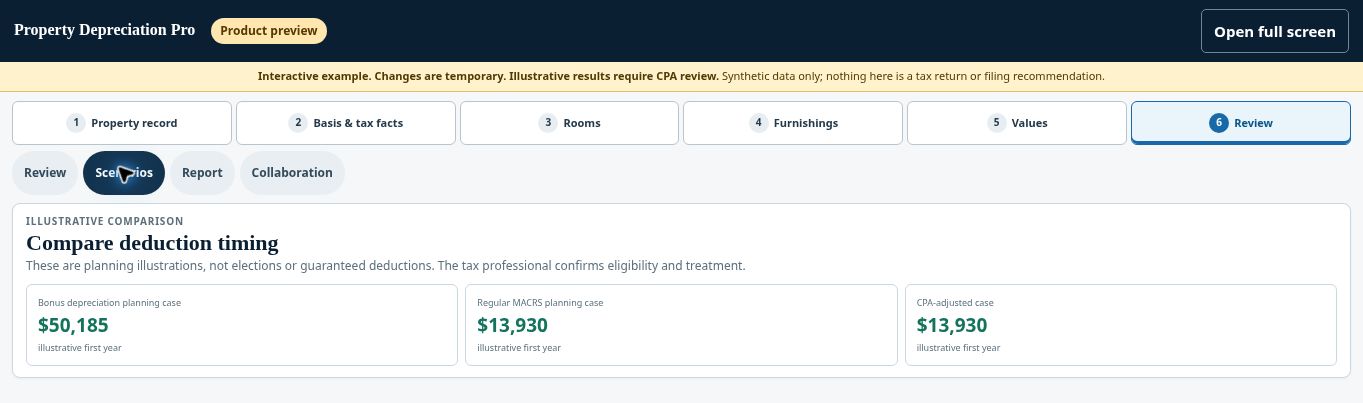
- Treat optional tax-rate and deduction-usability inputs as scenario assumptions. Save factual corrections and discuss filing choices with your CPA.
See this stage in the current demo #
Check before continuing #
Use the rules and elections applicable to the assets and tax year. Do not accept a scenario merely because it produces the largest modeled deduction.
If you get stuck #
Ask your CPA about eligibility, elections, passive-activity and at-risk limits, participation, personal use, and deduction usability.
Related help #
- Resolve flags and finish section verification
- Compare standard and accelerated depreciation scenarios
- Review scenario history and asset vintages
Open Property Depreciation Pro and select the relevant property. View the product tour.
This guide explains software use. Your CPA independently reviews classification, tax treatment, elections, and whether deductions are available or usable for your circumstances.


