
Quick answer: Supporting records help explain your inputs. Photographs are optional and do not substitute for cost or timing records.
Before you begin #
Gather closing records, invoices, receipts, allocation support, and useful photographs. Remove unrelated sensitive information.
Steps #
- Open the project’s document or evidence area using the controls available in your workspace.
- Add the records that support the property, basis, dates, and inventory. Associate them with the relevant section or item where supported.
- Use descriptive filenames so your CPA can identify the record without opening every file.
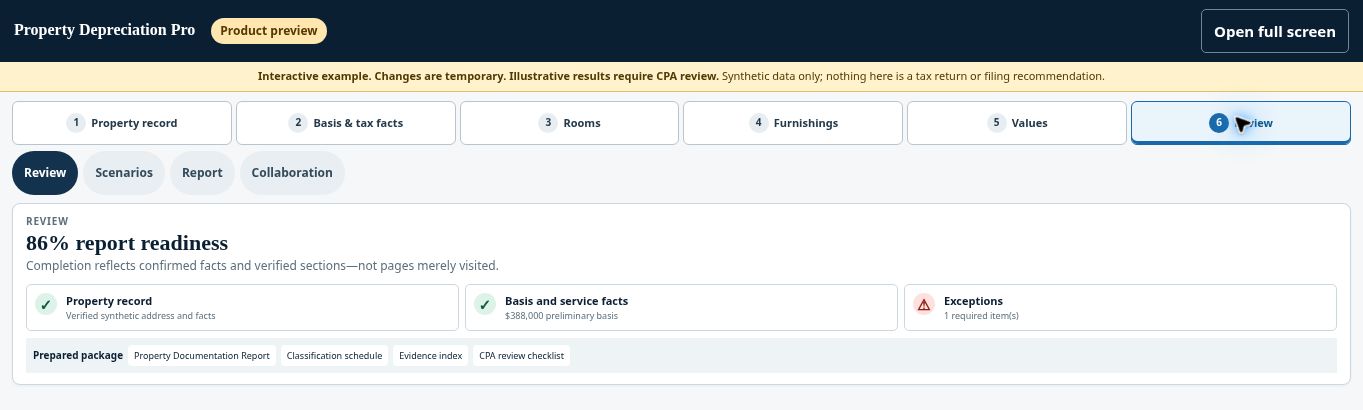
- Return to the review screen and check the displayed source-document count and any remaining missing-record notes.
See this stage in the current demo #
Check before continuing #
A completion indicator or green status does not prove evidence sufficiency. Compare the records actually present with the facts being modeled.
If you get stuck #
If an upload fails, check the format and size requirements displayed by the application. Do not assume a file was saved until you can see it in the project.
Related help #
Open Property Depreciation Pro and select the relevant property. View the product tour.
This guide explains software use. Your CPA independently reviews classification, tax treatment, elections, and whether deductions are available or usable for your circumstances.


