
Quick answer: The project workspace shows a CPA-sharing control that creates a 14-day secure link. Confirm the recipient and contents before sharing.
Before you begin #
Have your CPA’s correct name and email address and review the report version first.
Steps #
- Open the property’s project workspace.
- Locate the CPA-sharing fields and enter the intended CPA’s name and email address.
- Review the project and use the Create 14-day secure link control when ready.
- Follow the sharing instructions displayed and confirm your CPA can access the intended project.
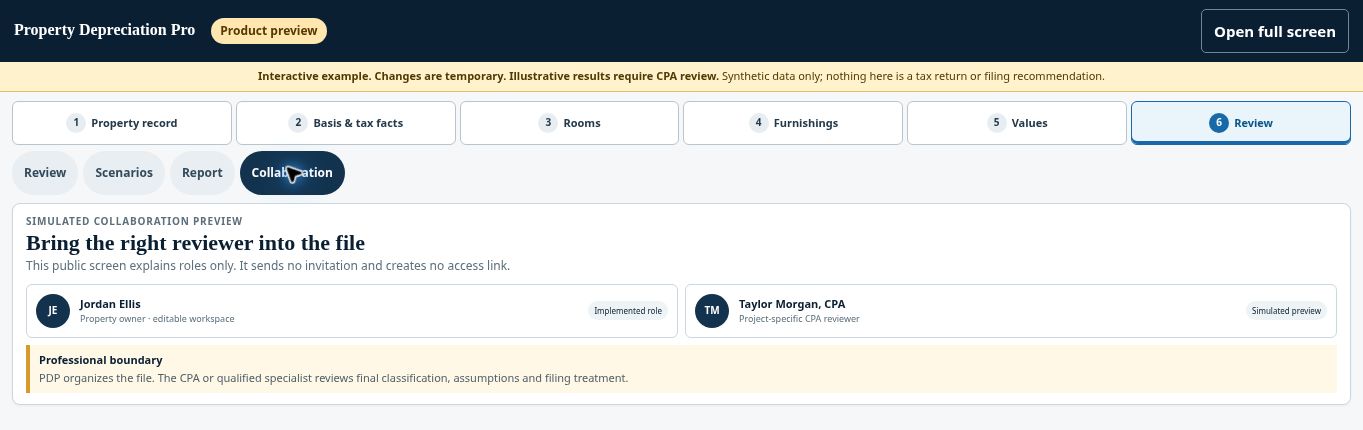
See this stage in the current demo #
Check before continuing #
A project-sharing link differs from workspace team access. Share only the information appropriate for the recipient.
If you get stuck #
If the link has expired, use the sharing controls to create a current link. Do not post a client project link on a public page.
Related help #
- Check readiness and complete checkout
- Download your report and depreciation spreadsheet
- Correct factual information and review a revised version
Open Property Depreciation Pro and select the relevant property. View the product tour.
This guide explains software use. Your CPA independently reviews classification, tax treatment, elections, and whether deductions are available or usable for your circumstances.


