
Quick answer: Scenario history helps keep different assumptions and asset timing distinguishable. Review the version you intend to share.
Before you begin #
Know which property year and asset additions belong in the current project.
Steps #
- Open the project’s scenario or version history.
- Compare the dates, asset vintages, and assumptions for the versions shown.
- Identify the version reflecting the facts and CPA adjustments you intend to review.
- Check the selected version before approval or export using the controls available.
See this stage in the current demo #
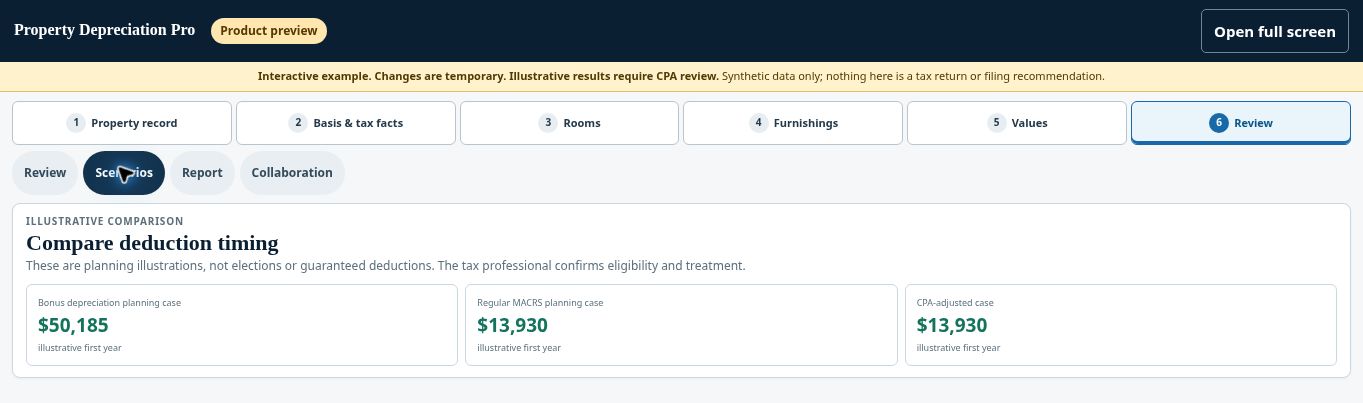
The focused demo shows a current scenario comparison. Open scenario or version history in your signed-in project to inspect earlier assumptions and asset vintages; those history controls are not shown in this preview.
Check before continuing #
A later acquisition or improvement should not silently inherit unrelated earlier assumptions.
If you get stuck #
If two exports differ, compare their versions and assumptions before replacing one. Keep the prior file available for your CPA’s review.
Related help #
- Resolve flags and finish section verification
- Review bonus-depreciation and CPA assumptions
- Compare standard and accelerated depreciation scenarios
Open Property Depreciation Pro and select the relevant property. View the product tour.
This guide explains software use. Your CPA independently reviews classification, tax treatment, elections, and whether deductions are available or usable for your circumstances.


