
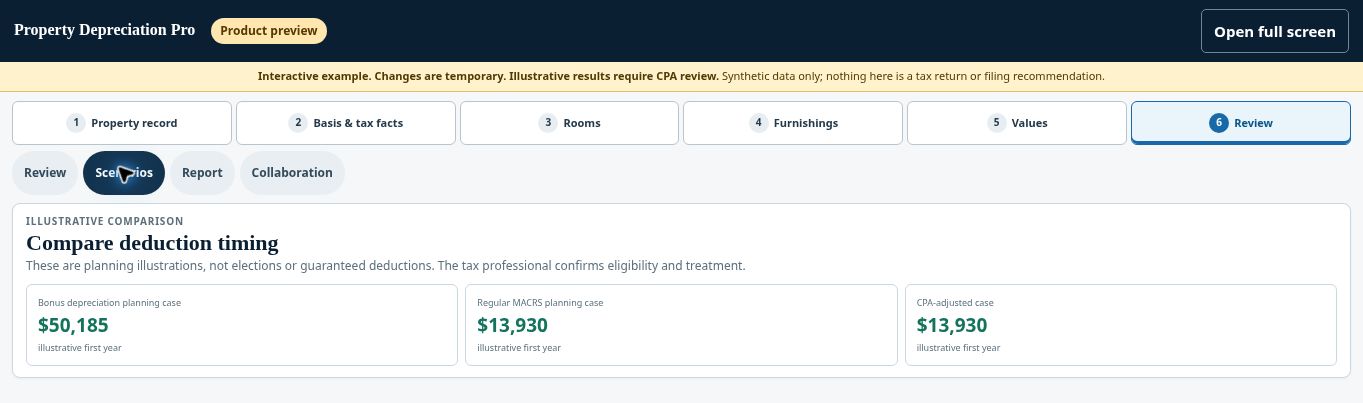
Quick answer: Scenario comparisons show modeled deduction timing under different assumptions. They are not a promise of tax savings.
Before you begin #
Complete basis, inventory, and timing inputs before relying on the comparison.
Steps #
- Open the depreciation comparison available in your project.
- Review the standard, bonus, and CPA-adjusted scenarios shown.
- Check the time period, asset classes, dates, and assumptions used in each scenario.
- Return to the underlying data when a result appears inconsistent, then discuss the comparison with your CPA.
See this stage in the current demo #
Check before continuing #
Earlier deductions do not automatically mean a currently usable deduction or a better overall tax outcome.
If you get stuck #
If a ruleset is marked pending review or a value is provisional, keep that qualification with any comparison you share.
Related help #
- Resolve flags and finish section verification
- Review bonus-depreciation and CPA assumptions
- Review scenario history and asset vintages
Open Property Depreciation Pro and select the relevant property. View the product tour.
This guide explains software use. Your CPA independently reviews classification, tax treatment, elections, and whether deductions are available or usable for your circumstances.


