
Quick answer: Review flags and section status before finalizing. Automated approval of an unflagged report is different from human review of a flagged report.
Before you begin #
Finish the inventory and have records available for any questioned value, date, or property fact.
Steps #
- Open the project review and inspect each section’s completion and verification status.
- Use the section review links to return to incomplete or questionable facts.
- Correct factual errors and add available support. Keep unresolved questions visible.
- Save the changes and check the review screen again before proceeding.
See this stage in the current demo #
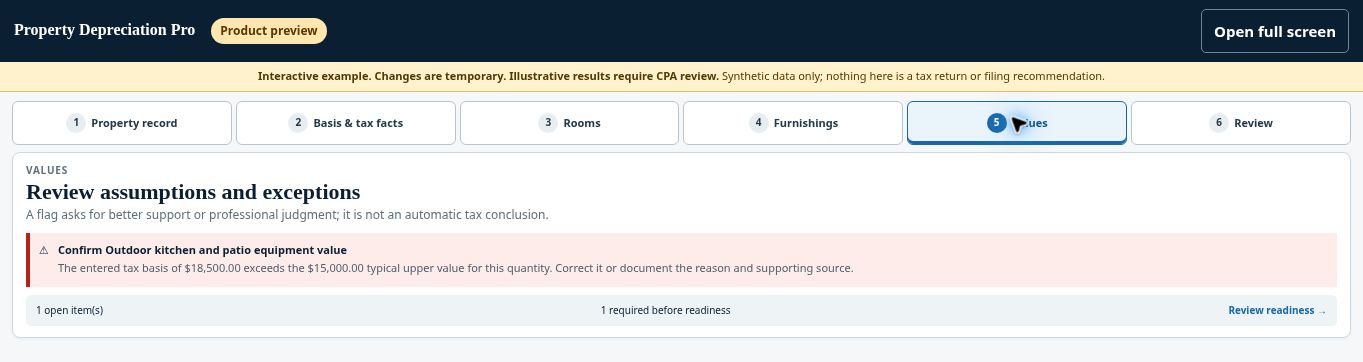
Check before continuing #
Flags, evidence counts, and completion indicators describe different things. A green indicator is not an assurance of tax treatment or audit outcome.
If you get stuck #
If a flag remains after a correction, follow the product review path. Do not repeatedly change a factual input solely to remove the warning.
Related help #
- Review bonus-depreciation and CPA assumptions
- Compare standard and accelerated depreciation scenarios
- Review scenario history and asset vintages
Open Property Depreciation Pro and select the relevant property. View the product tour.
This guide explains software use. Your CPA independently reviews classification, tax treatment, elections, and whether deductions are available or usable for your circumstances.


