
Quick answer: Start with the property’s address, type, and intended rental use. The result helps screen property fit; it does not determine your tax result.
Before you begin #
Have the full address, property type, rental use, and basic purchase facts ready.
Steps #
- Open the property check and enter a recognizable property nickname.
- Select the rental-use option that describes the actual or planned use. Enter the ownership and property-type information requested.
- Enter the address using the address suggestions when available, or enter it manually.
- Use the address-validation control and review the returned facts before building the property workflow.
See this stage in the current demo #
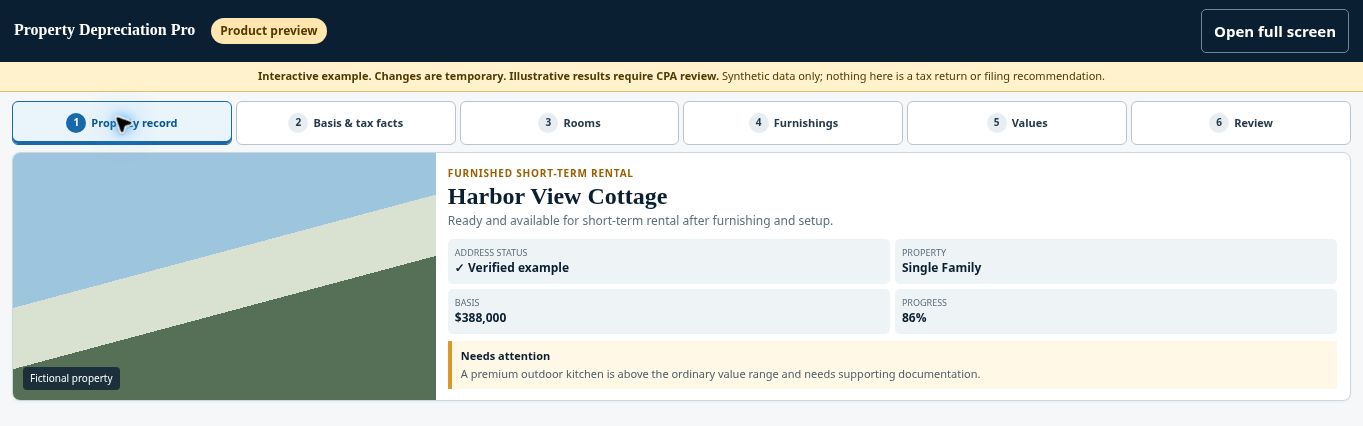
Try the Property record demo →
Check before continuing #
Check the unit number and property type. Keep uncertain facts visible rather than choosing answers solely to obtain an eligible result.
If you get stuck #
If the property cannot be matched, check the street spelling, ZIP code, and unit. A missing match does not establish eligibility or ineligibility.
Related help #
- Verify your address and property-data prefill
- Check property type and complexity before continuing
- Choose the rental-use option that matches your property
Open Property Depreciation Pro and select the relevant property. View the product tour.
This guide explains software use. Your CPA independently reviews classification, tax treatment, elections, and whether deductions are available or usable for your circumstances.


